

Configuration
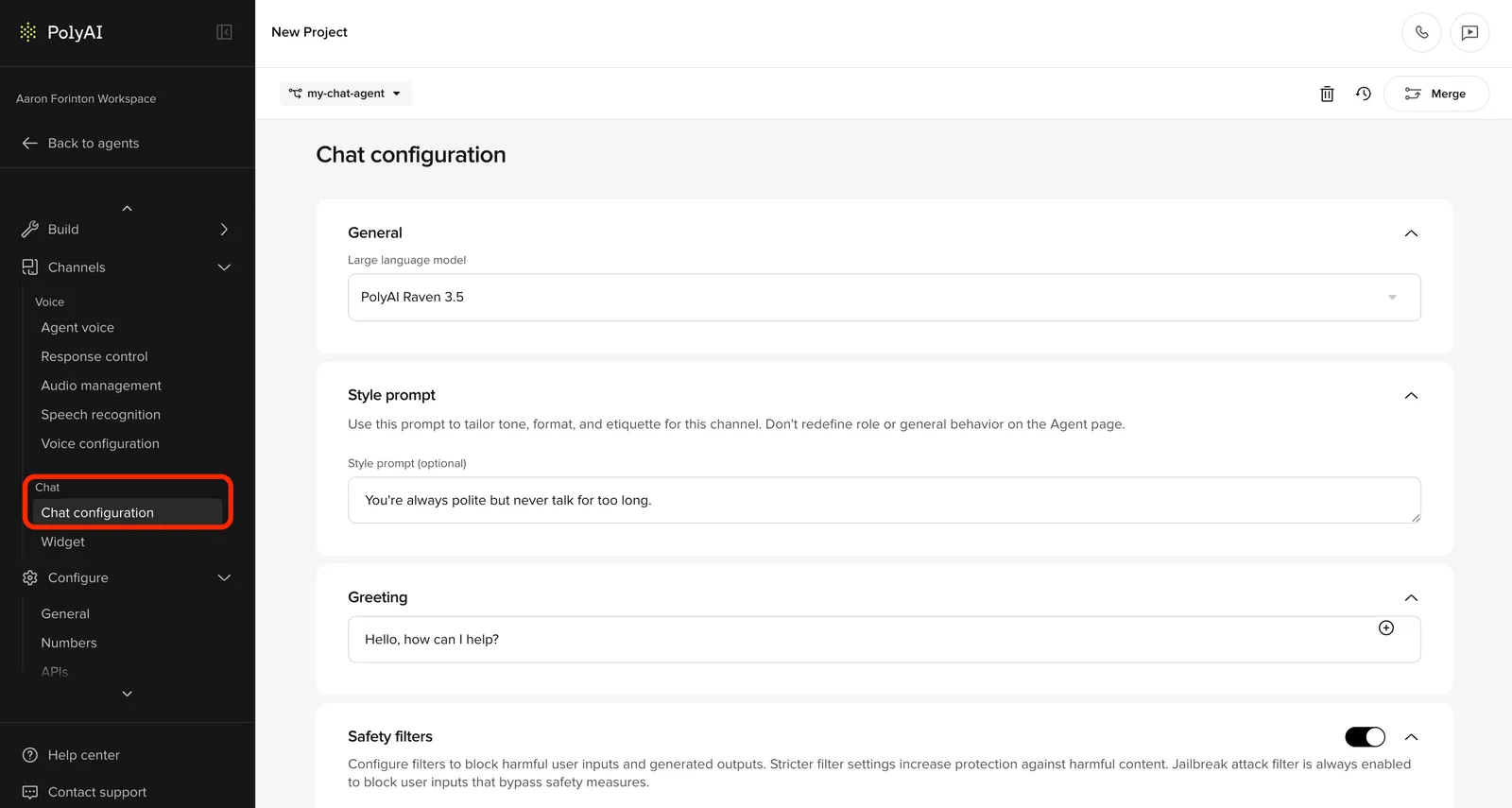
Configure chat settings in Messaging. Create widgets at Widget.
General
Select the language model that powers your chat agent.
Choose the LLM for chat responses. Available models include PolyAI’s Raven 3.5 (recommended), OpenAI (GPT series), and Amazon Bedrock options.
Recommended for chat: PolyAI’s Raven 3.5 is designed for conversational AI and tuned for both voice and chat. It supports custom style instructions, auto-reasoning for complex queries, out-of-domain detection, and 24+ languages. Earlier Raven versions are deprecated and now route to Raven 3.5 automatically.
Style prompt
Use this prompt to tailor tone, format, and etiquette specifically for the chat channel.
An optional multiline prompt that adjusts how your agent responds in chat. Use this to set channel-specific formatting or communication style that differs from voice.
Example: “Use concise responses with bullet points. Include links when helpful.”
The style prompt is optional. If left empty, the agent uses its default persona across all channels.
Greeting
Configure what your agent says when a chat session begins.
The first message your agent sends when a user opens the chat widget.
Example: “Hello, how can I help?”
Keep your greeting short and welcoming. Avoid long introductions that push the conversation off-screen.
Safety filters
Safety filters are configured on a per-channel basis. The chat channel has its own safety filter settings, separate from the voice channel and the project-wide defaults. See Safety filters for the full reference on categories, severity levels, and how filters interact with Guardrails.
When enabled, applies content filtering to chat responses. These filters apply to the chat channel only. Default settings can be managed on the Behavior page.
When safety filters are enabled, adjust the strictness for each category using the sliders:
The jailbreak attack filter is always enabled and cannot be turned off.
More lenient settings allow a wider range of content through. Review your use case and compliance requirements when adjusting these settings.
Branching behavior
Chat configuration changes take effect immediately when saved. Unlike other project settings, webchat does not follow the environment branching system – there is no Sandbox, Pre-release, or Live promotion step. Use the Test Agent Chat panel to verify changes before saving.
Markdown support
Chat messages support formatted markdown rendering:
- Bold and italics
- Bulleted and numbered lists
- Links
Code blocks
Formatted markdown appears in both the Test Agent Chat panel and Conversation Review.
Next steps
After configuring chat settings:
- Configure the widget - Style and customize the chat widget appearance
- Deploy to your website - Generate and embed the script tag
You must configure chat settings before the widget will function. In-product banners will guide you through this process.