

Conversations
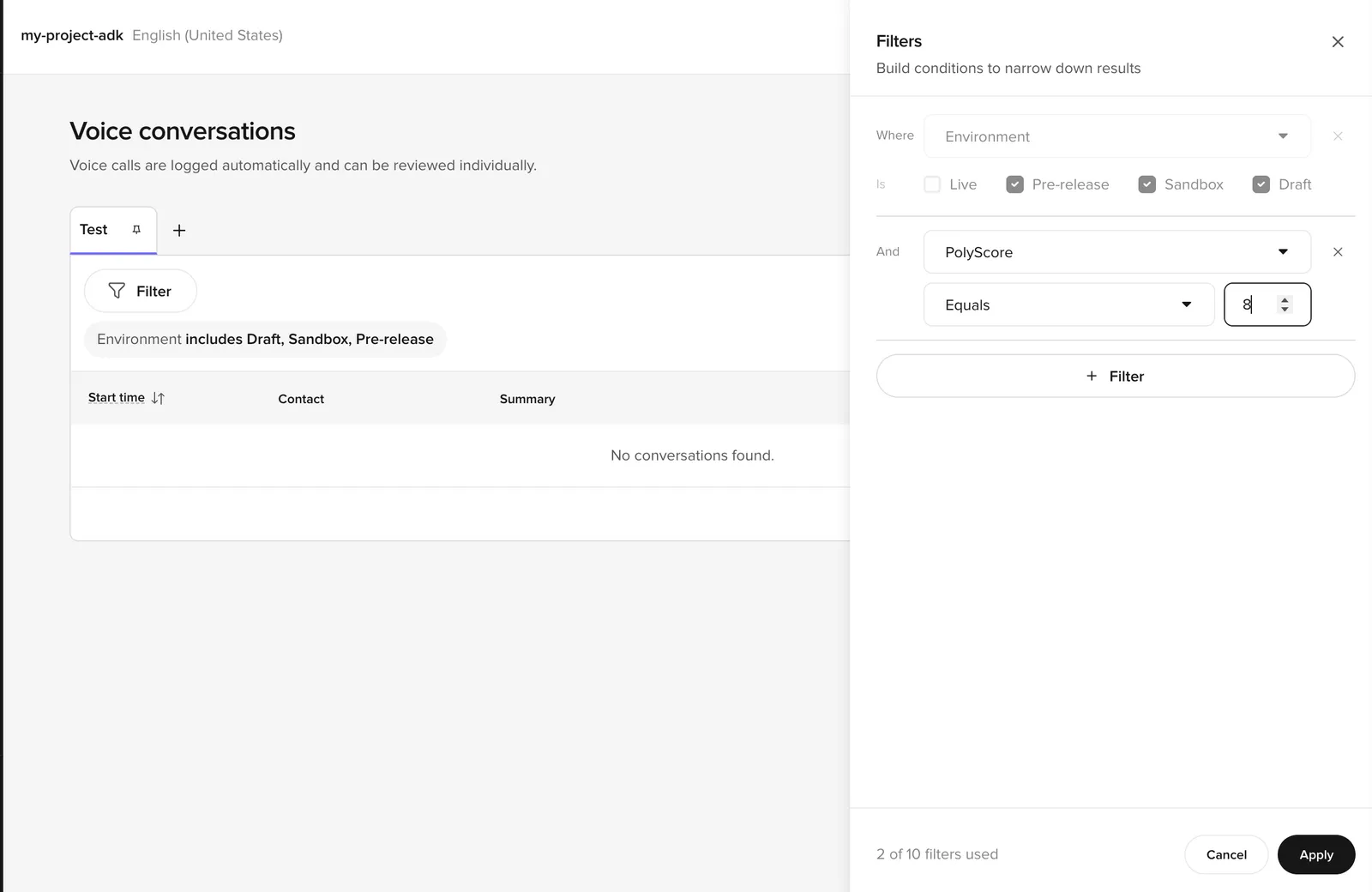
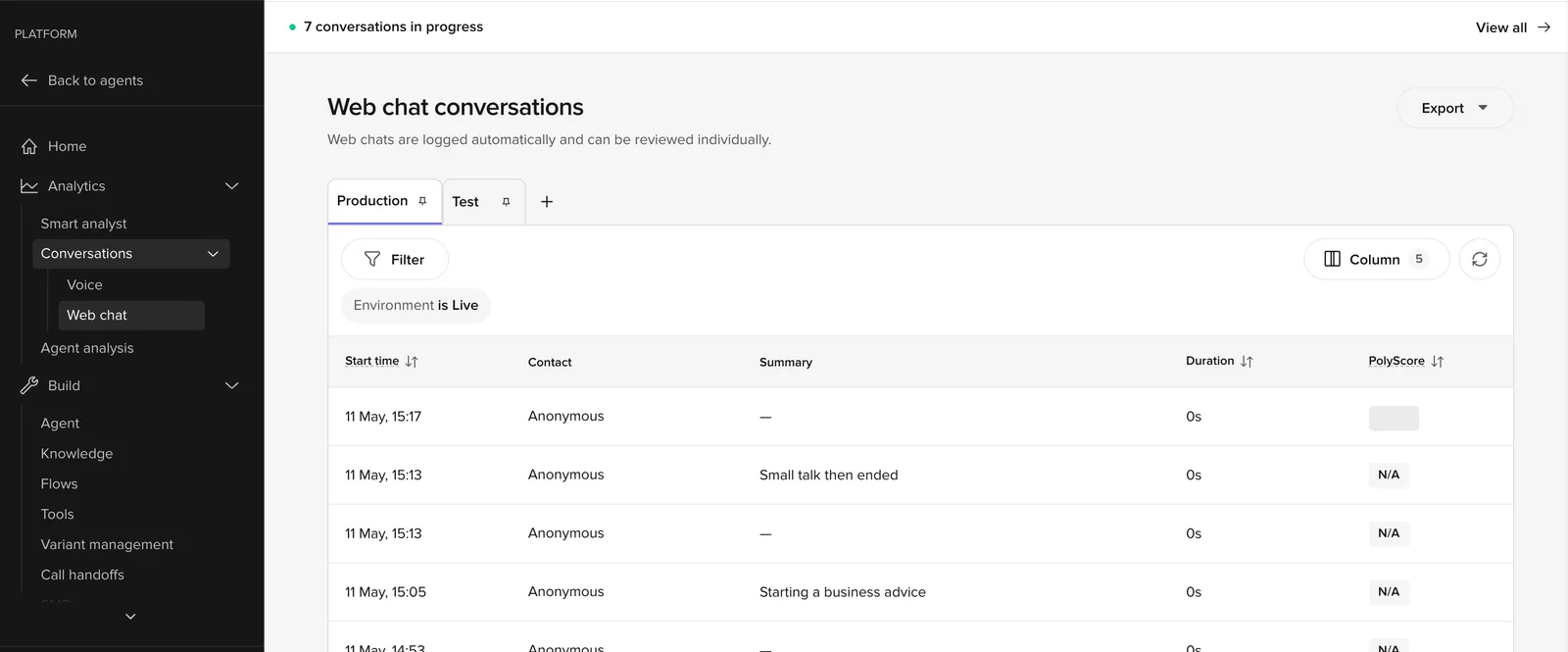
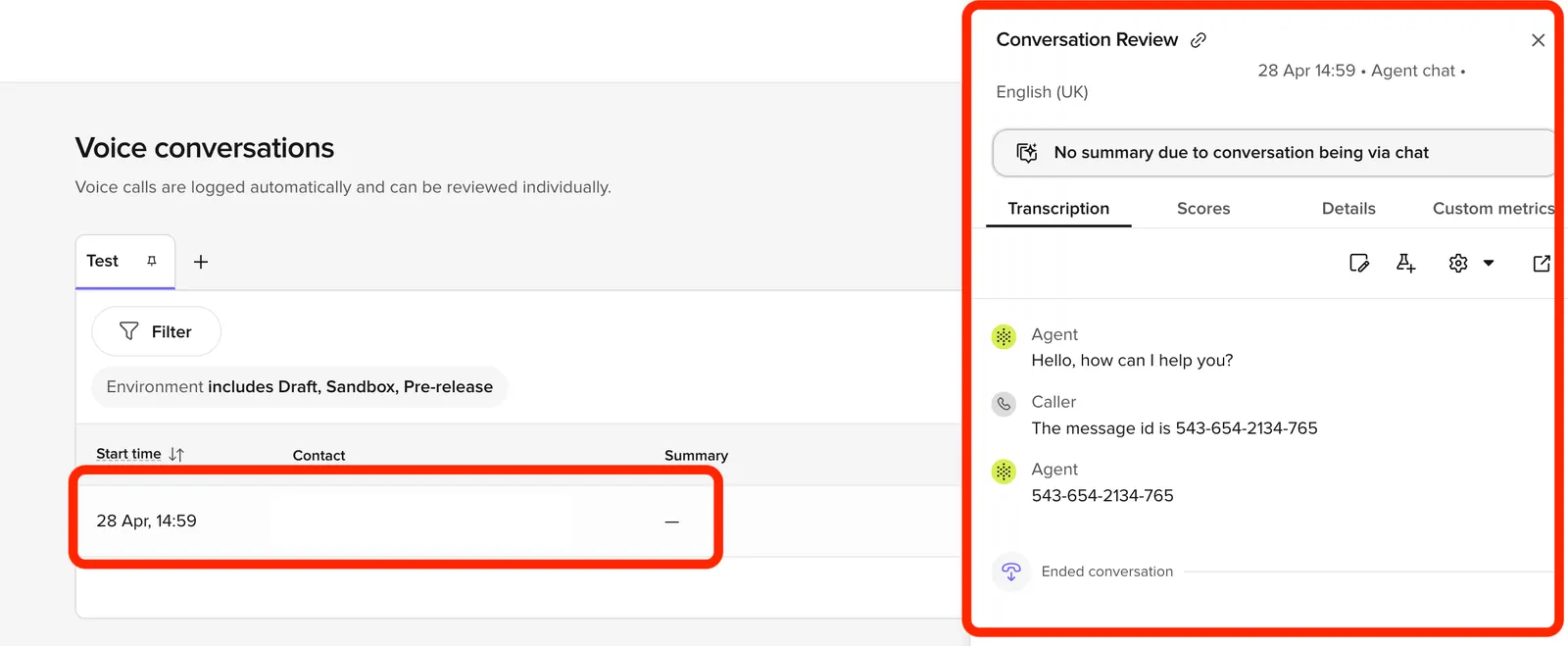
Use Conversations to inspect what actually happened on a conversation: transcripts, topic matches, function execution, and latency. When standard or custom metrics show a problem (containment dropping, safety flags rising), use this UI to diagnose the root cause.
Conversations is split into two scopes in the sidebar: Voice for voice calls and Web chat for webchat sessions. Both scopes share the same review, annotation, and diagnosis tools.
Iterate from a conversation with Studio Assistant. After reading a transcript, ask Studio Assistant to fix what broke — “the agent kept asking for the date even after the caller said ‘tomorrow’; fix relative-date extraction in the booking flow”. See Iterate after a call.
Dashboards show aggregate trends; Conversations is where you drill into the individual calls behind those numbers: what topics matched, what functions ran, what the LLM saw on each turn.
For QA workflows, see QA and analytics. For performance analysis, see Performance monitoring.