

Tutorial: Edit voice settings
Lesson 4 of 6 – Your agent has a personality and knows things – now give it a voice. You’ll pick how it sounds and adjust clarity and consistency.
Complete this after behavior is stable but before call testing. The voice is what turns your chat-only agent into a real voice assistant.
Where this lives
Navigate to Voice > Settings
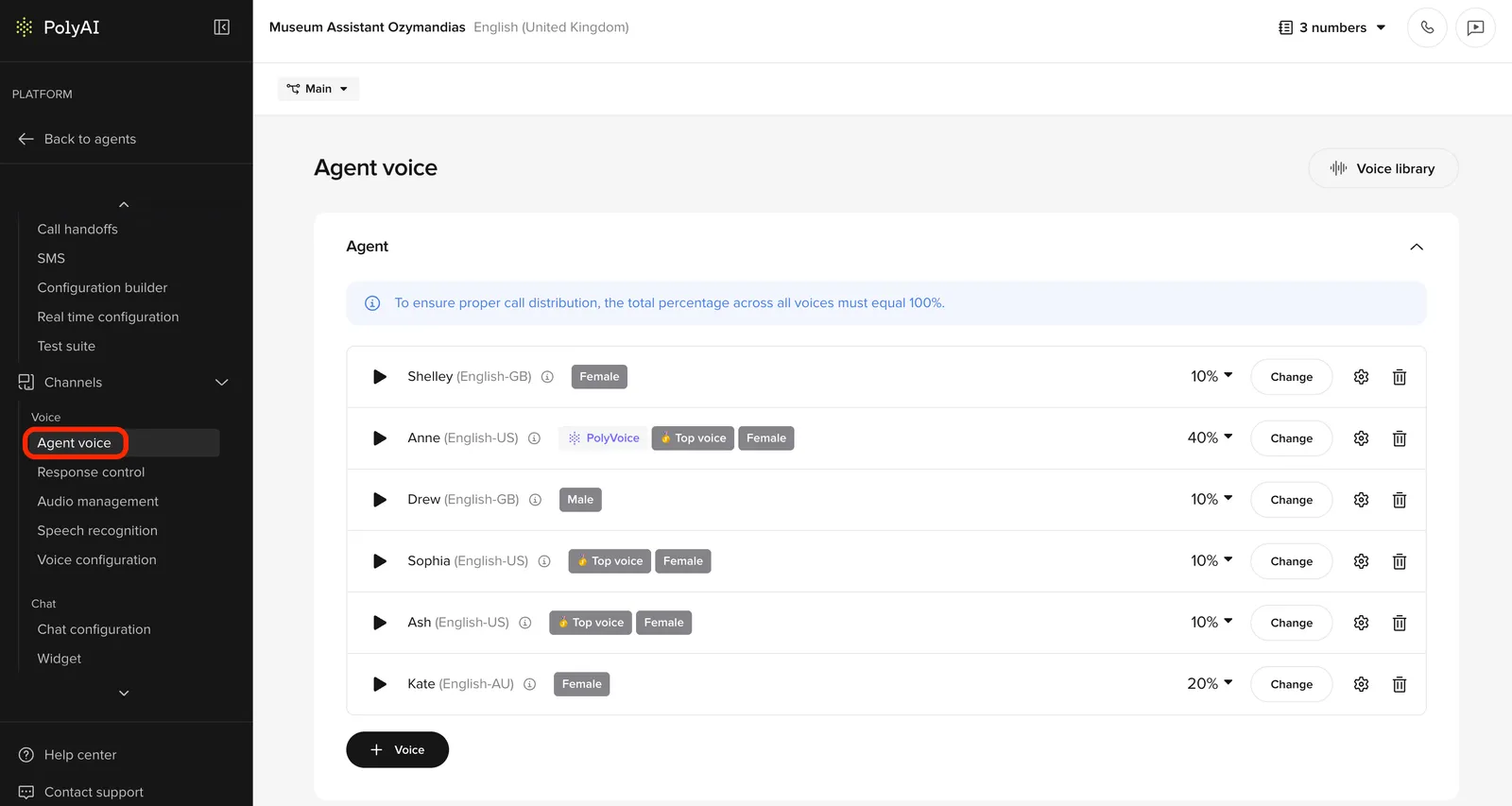
You will see two configurable sections:
What you are configuring
Each voice entry has three layers:
Configure your Agent Voice
Select the Agent Voice
In the Agent section:
- Click Change to open the Voice Library
- Browse voices using the Explore or Favorites tabs
- Filter by Language, Region, and Gender
- Preview each voice using the play button or enter custom text
Choose a voice that:
- Matches your audience’s expectations
- Sounds neutral and professional
- Remains pleasant over repeated listening
Once selected, click Select.
(Optional) Add multiple agent voices
You can add more than one agent voice and split usage between them.
- Click New voice
- Select an additional voice
- Assign a percentage weight (for example, 70% / 30%)
When to use multiple voices
- You want subtle variation across calls
- You are testing two voices in parallel
- Different voices for different scenarios
Configure voice settings
Next to each voice, click the Settings (gear) icon to open advanced tuning.
Stability (%)
Clarity and similarity (%)
Controls how consistent the voice sounds over time. Higher values keep tone and delivery more uniform across responses.
- Higher = more predictable, less expressive
Recommended: 0.7 or above for reliable performance.
Click Done to save settings.
Configure disclaimer voice (if enabled)
If your agent uses a disclaimer:
- Expand the Disclaimer section
- Select a voice (can be the same or different from the agent)
Best practices:
- Use a clear, neutral voice
- Avoid expressive or casual tones
- Keep speed slightly slower than the main agent
Example disclaimer text: “This call may be recorded for quality and training purposes.”
Check your understanding
Your agent plays a recorded legal disclosure before every call. Which section of the Agent Voice page handles this?
- Agent – it controls all audio played during the call
- Disclaimer – it’s designed for legal or informational pre-call recordings
- Behavior – legal requirements should be enforced there
- Environment settings – disclaimers apply per environment
Answer: Disclaimer – it’s designed for legal or informational pre-call recordings
The Disclaimer section is designed for legal or informational recordings separate from the agent’s main voice. Configure it only if your agent actually uses a disclaimer – otherwise leave it unconfigured.
Verify your voice settings
After publishing, make at least one test call and listen to:
Greeting
- Voice sounds clear and welcoming
- Pacing feels natural
- No awkward pauses
Mid-call responses
- Voice remains consistent across turns
- Responses flow naturally
- No sudden changes in tone or speed
Longer responses
- Voice maintains professionalism throughout
- Instructions are clear and easy to follow
- Pacing allows for comprehension
Success criteria:
- Voice sounds consistent throughout the call
- No awkward pacing or unnatural pauses
- Audio matches expectations across all conversation turns
If the voice quality is not as expected, adjust stability first, then speed.
Check your understanding
If the voice sounds off after publishing, what should you adjust first?
- Speed, then pitch
- Stability first, then speed
- Switch to a different voice model
- Pitch first, then stability
Answer: Stability first, then speed
Stability controls how consistent and predictable the voice sounds – it’s the most impactful dial for basic quality issues. Adjust it first, then fine-tune speed if needed.
Try it yourself
Challenge: Choose settings for a hotel concierge
You are configuring voice for a luxury hotel concierge agent. Decide and explain:
- Should stability be higher or lower – and why?
- What clarity range would you use for natural guest conversations?
- Would you use a single voice or multiple voices for this agent?
Hint
For a luxury hotel, consistency and tone matter a lot. Think about what “professional” sounds like in audio – and what settings support that.
Example solution
- Stability: High (0.8 or above). Luxury guests expect a consistent, predictable tone – not expressive variation.
- Clarity: 80–90. This range keeps the voice natural and conversational without being brittle to unexpected phrasing.
- Single voice. Multiple voices introduce inconsistency, which conflicts with a luxury brand expectation. Add a second voice only if you’re specifically A/B testing.
Check your understanding
When should you configure a disclaimer voice?
- Always – it’s a best practice for every agent
- Only if your agent uses a disclaimer (e.g. “This call may be recorded”)
- Only on enterprise plans
- For each environment separately
Answer: Only if your agent uses a disclaimer (e.g. “This call may be recorded”)
Only configure a disclaimer voice if your agent actually uses one. If your agent doesn’t include a disclaimer, this section can be ignored entirely.
Go deeper
The Voice section of the Help Center covers everything from choosing voices to advanced multi-voice setups: